
Tape chart: zoom, drag and landscape
Zoom in and out, make bars thicker or thinner, move bookings by dragging, create bookings by selecting days, and use landscape on a phone.
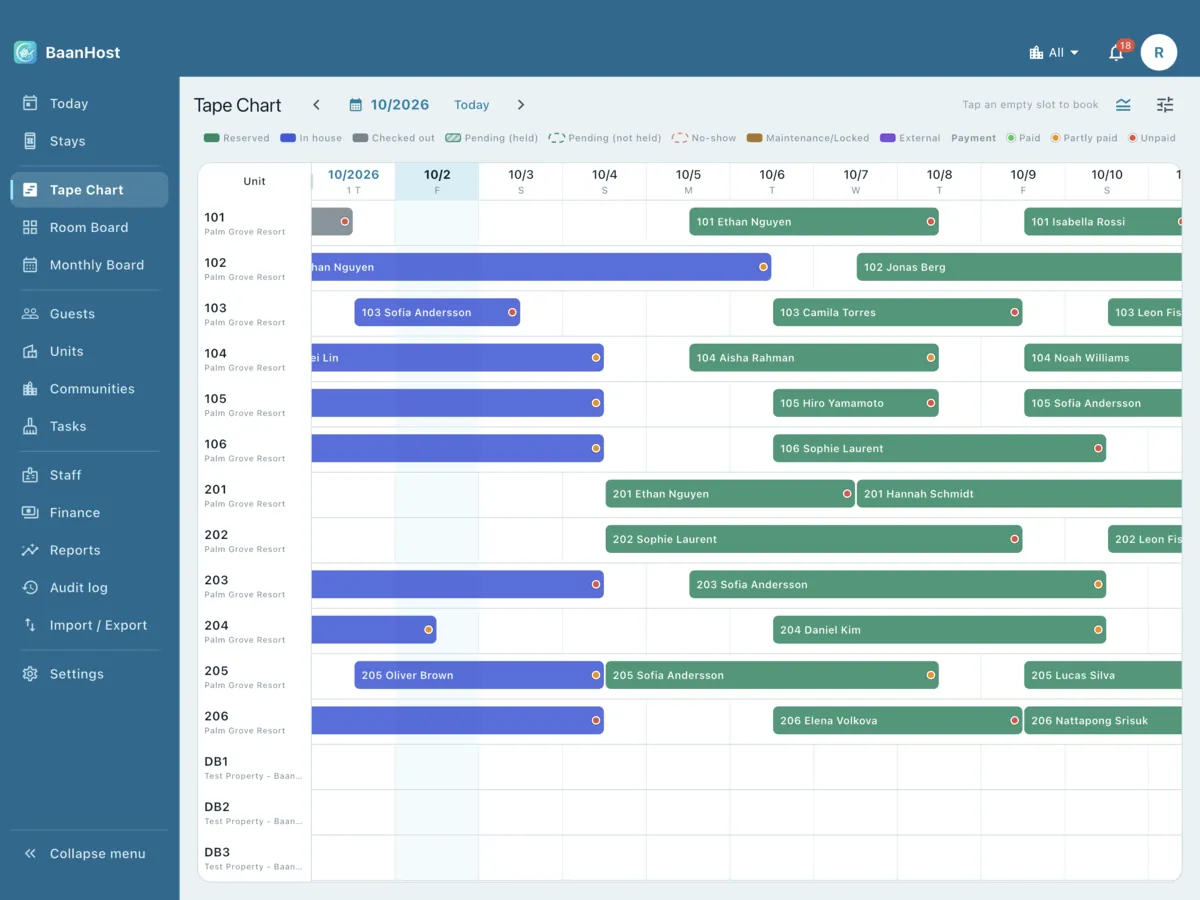
The tape chart shows one row per unit and one column per day. Open it from Tape Chart in the bottom bar or the side menu.
Reading the bars
- A bar starts in the middle of the check-in day and ends in the middle of the check-out day. A guest leaving and a guest arriving on the same day share that cell.
- Colours show the status. Tap Legend to see what each colour means. A striped bar is Pending (held), a dashed outline is Pending (not held) or No-show.
- Tap a bar to open the booking.
Move around and zoom
- ‹ and › move two weeks. Tap the month to jump to a date, or Today to come back.
- Pinch with two fingers: sideways for wider or narrower days, up and down for thicker or thinner bars. Zoom far enough in and the days are divided into hours.
- The sliders icon opens View settings:
- Zoom: 1 week, 2 weeks, 1 month or 2 months on screen;
- Bar thickness: Comfortable or Compact;
- Unit column width, Bar content, Group by, Filter (for example Vacant today only), Sort and Arrange units;
- Reset returns to the standard view.
- These settings are remembered on each device.
Unit column width
Drag the right edge of the unit column in the header row to make it wider or narrower. Double-tap the edge to go back to automatic. The Unit column width slider in View settings does the same.
Create a booking
- One date: tap an empty cell. A new booking opens with that unit and check-in date.
- Several nights: press and hold an empty cell, then drag along the row to the last night. When you let go, a new booking opens with check-in and check-out already filled in.
Change dates or move to another unit
- Press and hold a bar for about half a second until it lifts.
- Drag it:
- sideways to move the stay to other dates (same number of nights);
- up or down to move it to another unit;
- by its right end to change the check-out date;
- by its left end to change the check-in date (reserved bookings only).
- Let go. Confirm the change shows the old and new dates and how the rent changes. Tap Confirm.
If the new dates clash with another booking or a block, the reason is shown in red; tap Got it.
On a phone: landscape view
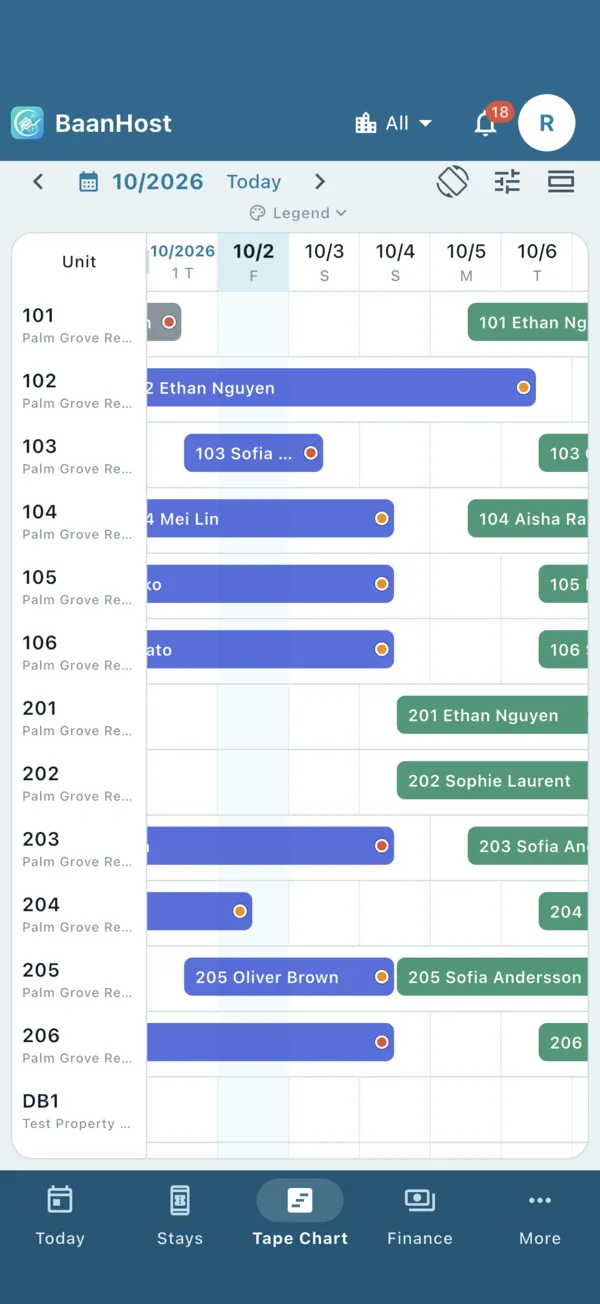
Tap Landscape view (the rotate icon) to turn the chart sideways and see more days. Tap Exit landscape or use Back to return.
On a tablet: fold the side menu
Tap Collapse menu at the bottom of the side menu to give the chart more room. Only the icons stay; tap » (Expand menu) to open it again. With a keyboard, Ctrl+B or ⌘B does the same.