
TM30 in Thailand: how hotels, guesthouses and villas report foreign guests within 24 hours
Who has to file TM30, which guest details you need, how to file online, the fines for filing late, and every step from opening an account to keeping the receipt.
BaanHost is independent property management software. We are not the Thai Immigration Bureau and are not affiliated with it. Official TM30 reports are filed on the Immigration Bureau's own website, tm30.immigration.go.th. BaanHost never asks for your immigration account or password.
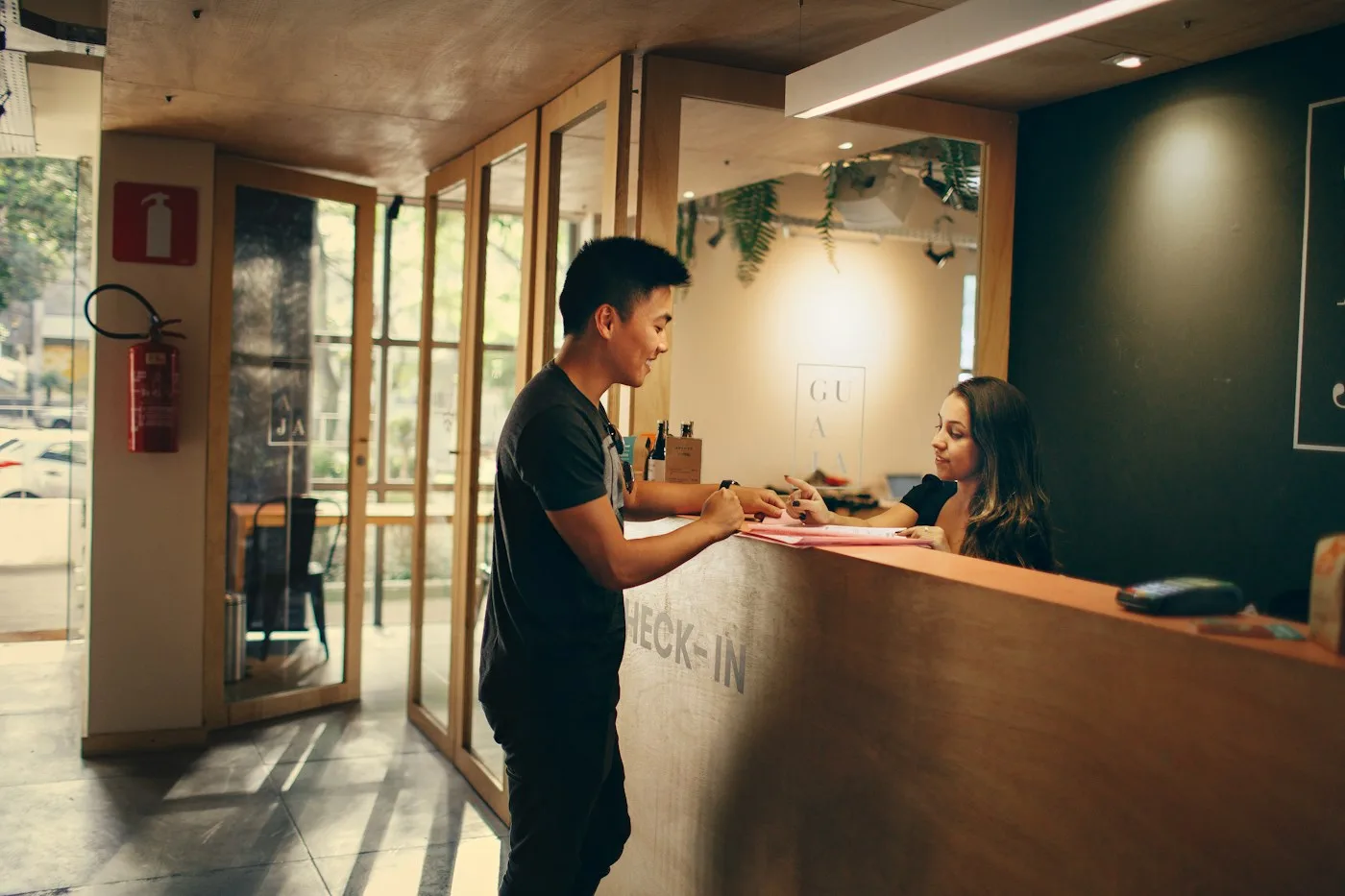
If you run accommodation in Thailand, every foreign guest who stays with you has to be reported to immigration within 24 hours. That report is TM30. It applies to hotels, guesthouses, hostels, villas and apartments let by the night alike. Late or missing reports can be fined, and long-stay guests can run into trouble later when they extend their visa. This guide explains who files, how, and which details you need, then walks through filing online and keeping the receipt, step by step.
What TM30 is and who files it
TM30 is the notification of residence for foreigners required by Section 38 of Thailand's Immigration Act. The duty sits with the owner of the place, the person who runs it, or the hotel manager, not with the guest.
- Hotels, guesthouses, hostels and resorts: the operator files.
- Villas and apartments let by the night or week: the owner or the management company files.
- Thai citizens are not reported. Every foreign guest is, including family and friends travelling with the person who booked.
- Deadline: within 24 hours of the guest's arrival.
Ways to file
- Online (the usual way): the Immigration Bureau's TM30 system at tm30.immigration.go.th. Once you have an account and have added your accommodation, you can enter guests one by one or upload many at once with the official Excel template. The steps are in the second half of this guide. No software yet? Download our free TM30 Excel template and fill it in on your own computer.
- In person at the local immigration office: fill in the paper form and bring copies of the guests' passports. The officer hands back the lower part of the form; that is your receipt.
- By registered post: some offices accept it, but it is slow and hard to prove on time, so it does not suit a place with guests every day.
With more than a few guests, filing online with the Excel upload is the easiest: one file for the day's arrivals, uploaded in a few minutes.
Which guest details you need
For each guest, the online system asks for:
- first name, middle name and last name (exactly as in the passport, in capital letters)
- gender
- passport number
- nationality
- date of birth
- expected check-out date
- phone number (optional)
The check-in date and the accommodation are not in the Excel file; you choose them on the website when you upload. The paper form may also ask for the date of entry, the visa type and other details; follow your local office's form.
The guests most often missed are the companions. Platform bookings usually carry only the booker's name, so collect everyone else's passport at check-in.
What happens if you file late or not at all
- Fines: under Section 77 of the Immigration Act, up to 2,000 baht for an owner or the person running the place, and 2,000 to 10,000 baht for a hotel manager. The officer decides the actual amount, and practice differs from office to office.
- Trouble for the guest: when long-stay guests extend their visa or make their 90-day report, immigration often checks the TM30 record, and a missing one may have to be filed first.
- The online system will not take late filings: when you upload, the check-in date can only be today or yesterday. Guests who checked in earlier can no longer be filed online, and you have to go to the immigration office.
- Receipts disappear: the online system only lets you look up and export a notification within 7 days of the check-in date, so save the receipt straight away.
Guests who leave Thailand or another province and come back
For short stays, every stay is a new notification. For long-stay guests and monthly tenants who travel abroad or to another province and come back to the same place, the rules were relaxed in 2020 and in many cases no new report is needed; a guest who moves to a new address must always be reported again. Offices apply this differently, so if in doubt ask your local immigration office. Filing once more does no harm.
A daily TM30 checklist
- Collect passport details at check-in. Photograph or scan the photo page of every foreign guest's passport, companions included.
- Copy the passport exactly. Do not swap first and last names; use the nationality shown in the passport.
- Report today's arrivals today. Before you finish for the day, file everyone who checked in; guests who arrive late at night go first thing the next morning. That keeps you inside 24 hours every time.
- One file per address, per day. If several villas are registered as separate addresses, upload each one separately. All guests in a file share one check-in date, so upload each day's arrivals on their own.
- Save the receipt at once. Download it right after uploading; after 7 days the system no longer shows it. Long-stay guests often need it for their visa.
- Mark who has been reported. Whether you use a notebook, a spreadsheet or software, anyone on the next shift should see at a glance who is still to be filed.
- Keep passport data safe. Passport details are personal data protected by Thailand's PDPA. Show them only to the people who need them, and delete them when the retention period ends.
How BaanHost helps
TM30 reporting is built into BaanHost and switches on when the property's country is set to Thailand. It does three things for you:
- No guest is missed. At check-in, every non-Thai guest (one line per companion too) goes onto the Guest registration list with the 24-hour deadline. Overdue rows turn red, and reminders show on the Today page and in the notification bell.
- No copying by hand. Scan the passport with the phone camera and the name, passport number, nationality, gender and date of birth are filled in; on phones with NFC, the passport chip can be read to confirm them. The scan photo is deleted once it has been read. Guests can also register online before they arrive, using a link you send them. The list shows which details are missing for which guest.
- The upload file in one tap, and a place for the receipt. The Excel export is in the immigration system's import format, and after uploading you keep the receipt in BaanHost, where you can always find it.
Here are all the steps. The first two parts are done once; after that, follow steps 1 to 3 each day.

First time: open an immigration TM30 account
- In a computer browser, open tm30.immigration.go.th/tm30/ and click ลงทะเบียน / Register on the login page.
- Choose Thai or foreigner and enter your email address (it becomes your username), ID card or passport number, phone number, gender and name. Upload a copy of your ID card or passport, signed to certify it is a true copy, fill in the captcha and click ลงทะเบียน / Register.
- Within 7 days, open the email titled [TM.30] Verify Email and click คลิกเพื่อยืนยันอีเมล / Verify Email. A second email brings your username and a temporary password; you set your own password the first time you log in.
- Log in and add your accommodation: the house ID number (เลขรหัสประจำบ้าน, shown in the house registration book) and the address, plus copies of the house registration book or business licence and the owner's ID card. If you are not the owner, also upload a letter of authorisation signed by the owner.
- If several villas each have their own house number, add each one separately. Some addresses have to be checked by immigration before you can file for them.
Screenshots, the full list of documents and fixes for common problems are in TM30 online registration and login, step by step.
First time: set up BaanHost
- Open Communities, click the pencil icon next to the property and set Country to Thailand.
- Leave Guest registration on and enter the Residence name in the official system: the name of your accommodation in the immigration system. You pick the accommodation by name when you upload, so the same name makes it easy to match.
- Give every unit a Filing address: edit the unit → Filing address → New address. Hotels and guesthouses usually need one address for the whole property; villas one per building, matching the accommodations you added in the immigration system.
Every day, step 1: export the file from BaanHost
It is easiest on a computer: open the BaanHost web app (app.baanhost.com) and the immigration website on the same computer, and the file you download is ready to upload.
- Open More → Guest registration (or tap the Guest registration card on the Today page).
- For any guest marked "Missing …", click the line to complete the details, or scan the passport. If anyone's details are incomplete, the export asks you to complete them first.
- Click Export N guests at the top right. If the property has several filing addresses (several villas, for example), each address has its own export button; export each one.
- Your computer downloads a file named "TM30-address-date.xlsx", usually into the Downloads folder. Those guests change to Exported, awaiting confirmation.
The phone app works too: More → Guest registration → tap the export button, save the file to your phone from the share menu, then upload it in the phone's browser.

Every day, step 2: upload on the immigration website
- Open tm30.immigration.go.th/tm30/ and log in with your email address and password (there is a human check at login).
- Click นำเข้า Excel / Import Excel.
- Choose the accommodation: search by name and pick the one that matches the "Residence name in the official system" in BaanHost. Then choose the check-in date: the date in the file name (only today or yesterday can be chosen).
- Click เลือกไฟล์ / Browse file and choose the TM30 file you downloaded.
- Click แสดงข้อมูลจาก Excel / Show data from Excel. The website lists the guests in the file.
- A red warning means something in that guest's details is wrong. Correct the guest in BaanHost, then under Filing batches at the bottom of the Guest registration page, click ⋮ → Download file again for that batch, and import again from point 2.
- When there are no red warnings, click บันทึก / Save. The guests are now reported.
Every day, step 3: download the receipt and keep it in BaanHost
- After saving, the immigration website offers the notification receipt (a PDF) straight away. Download it to your computer.
- Missed it? On the immigration website, go to Inform Accommodation → Search, choose the address and the accommodation, enter the check-in date and click ค้นหา / Search. Click the view icon on the notification, then นำออก / Export. Only notifications from the last 7 days after check-in can be found.
- Back on the BaanHost Guest registration page, scroll down to Filing batches, find the batch you just uploaded and click ⋮ → Filed, attach receipt. Choose the PDF you downloaded (a photo works too).
- The guests in that batch change to Filed. Later, ⋮ → View receipt under Filing batches opens it, and you can send it to a long-stay guest who needs it for a visa.
If you do not have the receipt yet, click Mark as filed now and add it later with Upload receipt. In the phone app, tap the history icon at the top right of the Guest registration page to open Filing batches; the buttons have the same names.

Also run properties outside Thailand? See guest registration rules by country for Vietnam, Japan, Spain, Italy and Portugal.
For the full settings, see TM30 guest reporting (Thailand) and Check-in, passport scan and chip. Try BaanHost free for 14 days, no card needed.
Tape chart, channel sync with Booking.com, Airbnb, Agoda and Trip.com, guest check-in and finance in one app. No card needed.